Books on iPhone
How to read EPUB and PDF books with translations on iPhone
Prepare a readable EPUB or PDF, import it into Kalima, check the text, and use word lookups without losing the thread of your book.
Screenshots illustrate the app; book text and the pronunciation example retain their original language.
Choose a file you can actually read
To read an EPUB or PDF with word lookups in Kalima, make the file available on your iPhone, use the app’s import options to select it, and open the imported text. Before settling into a chapter, check that the words and paragraphs appear in the right order. You can then look up unfamiliar words and save useful vocabulary as you read.
Start with a file you are entitled to use, such as your own document or an ebook offered for download by its publisher. Having a book inside a different reading app does not necessarily mean you have an exportable EPUB or PDF. If the source only provides access inside its app, check whether it also supplies a downloadable file. Kalima’s support for a format does not promise that every protected ebook can be imported.
When both are available, a straightforward EPUB is often a convenient starting point for prose. With a PDF, inspect whether its pages contain selectable text or are pictures of text. A complex page with columns, captions, or scanned handwriting deserves a closer check after import. The important question is whether the resulting text is usable for the reading you want to do.
Import your book or document
- Save the EPUB or PDF somewhere you can select from your iPhone, and make sure the file has finished downloading.
- Open Kalima and sign in. An account is required to use the app.
- Open the import options. Choose the book option for an EPUB or the document option for a PDF, then select your file.
- Open the imported item and check the beginning of a chapter before continuing. Exact presentation can vary with the app version and the file.
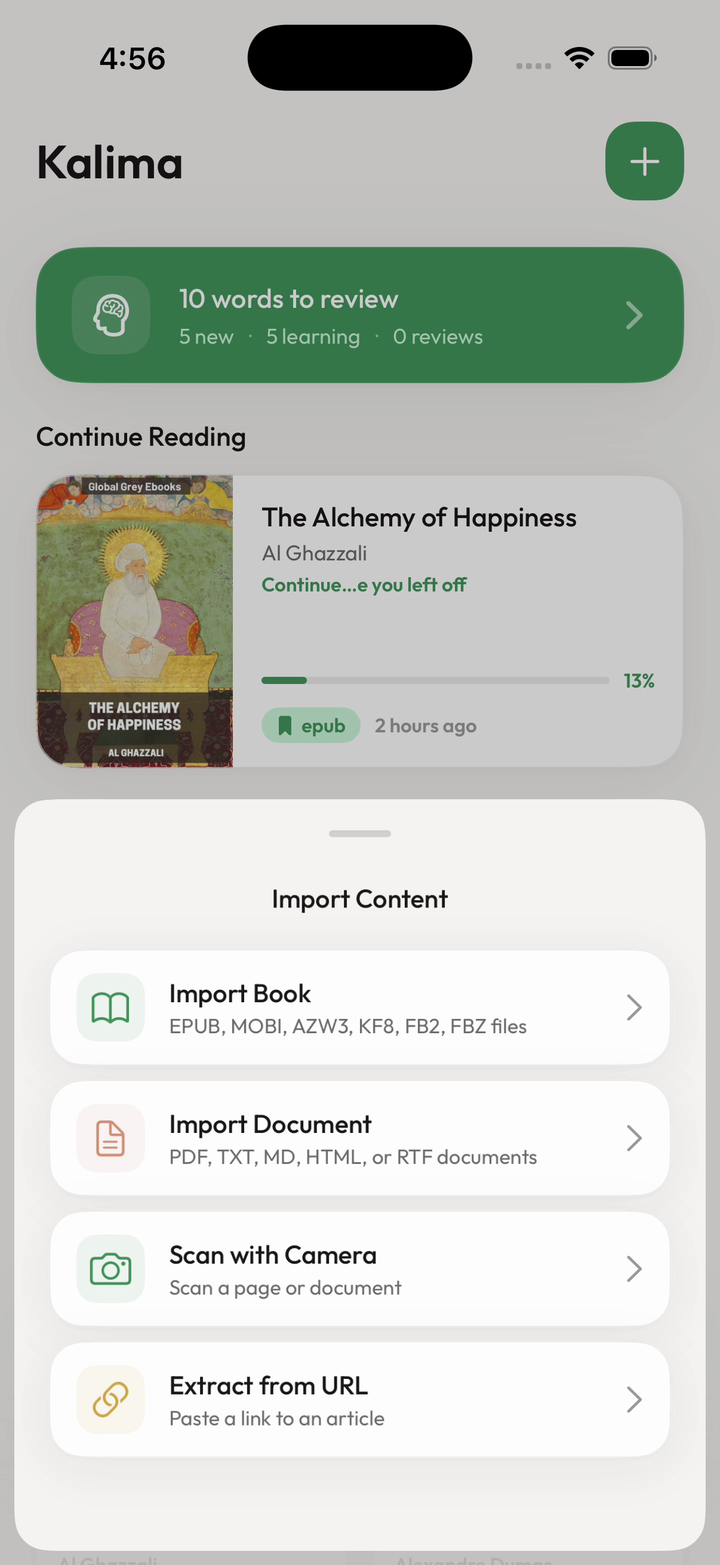
Kalima also supports MOBI, AZW3, KF8, FB2, FBZ, TXT, MD, HTML, and RTF, plus URL extraction and camera scans. For a first attempt, use one short, simple file. That makes it easier to tell whether an unexpected result comes from the document or from the way you are opening it.
Check text quality before looking up words
Read a few sentences and compare them with the original file. Look for missing accents, words joined together, repeated page headers, and paragraphs appearing out of sequence. Those problems can make a lookup confusing even when the individual words are familiar. Do this check at a normal paragraph and again near a heading or page boundary.
If a PDF behaves poorly, try a text-based version from the original source or a simpler EPUB when one is available. For a scan, do not assume that every letter will be recognized correctly. Review the extracted result before relying on it for vocabulary practice. Camera scanning is another Kalima input option, but no input method removes the need to check the text.
If the file does not import, first confirm that it is the actual downloaded document and that you can open it from its saved location. Try a different small file in a supported format. Keep the file type and a description of what happened if you contact support; avoid sending an entire personal document when a brief description would explain the issue.
Use lookups to get back to the sentence
Once the text is readable, start with one paragraph. Tap an unfamiliar word for a definition or translation, then read the whole sentence again. A word can have more than one meaning, so compare the suggested meaning with the situation in the book. For example, “She left a note on the table” calls for the message sense of “note,” rather than a musical sound.
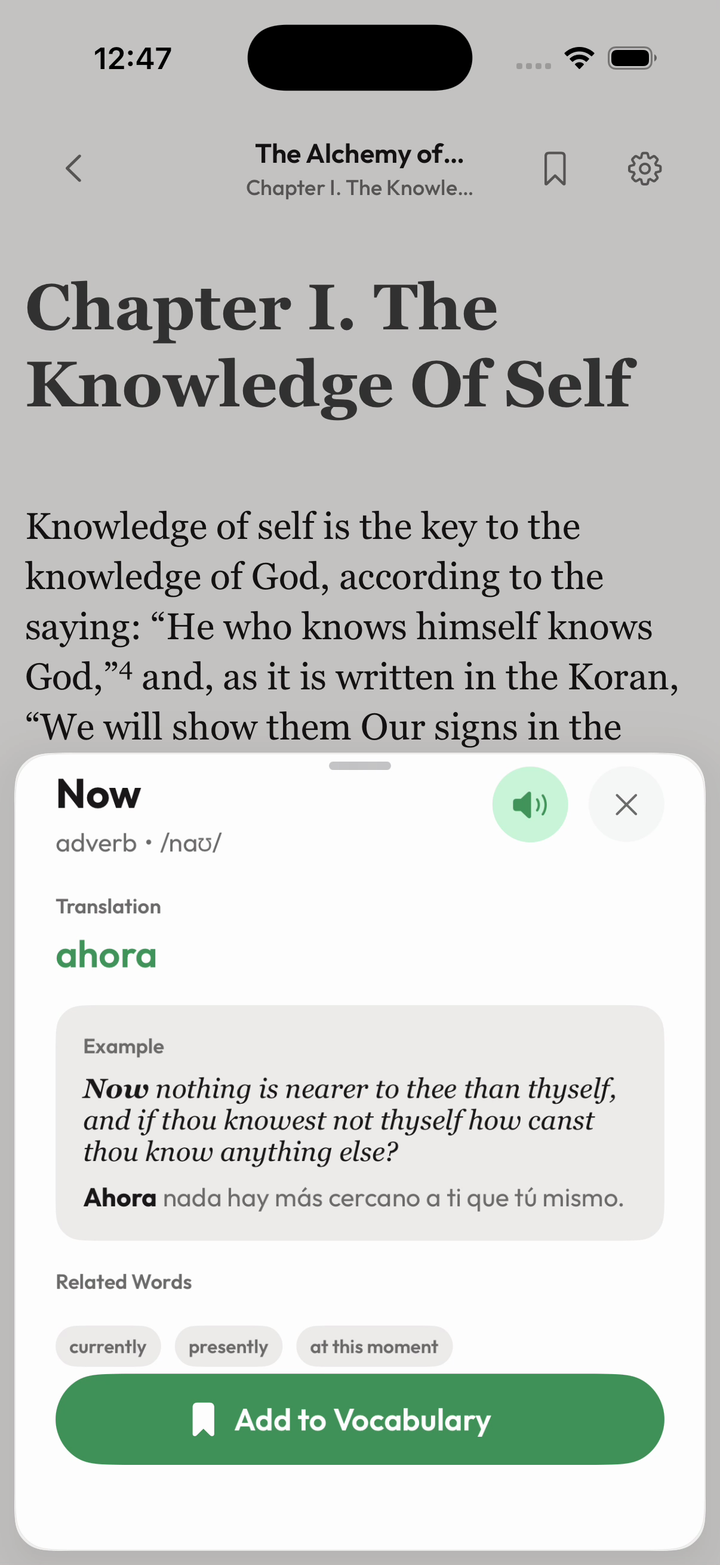
Use the speaker button in the word panel to hear the pronunciation, then return to the sentence. These captures illustrate the controls; your book and lookup results will differ.
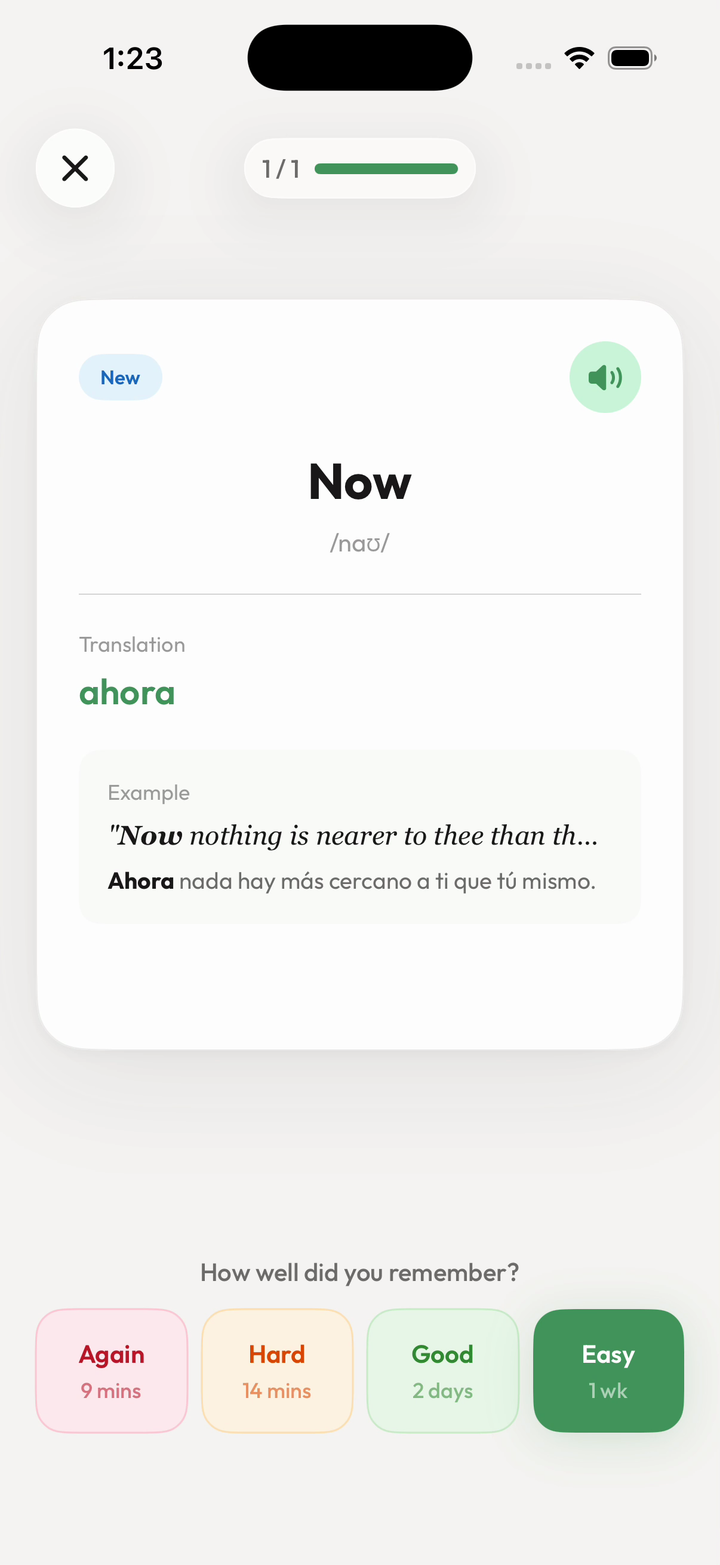
Save words you want to revisit. Kalima keeps vocabulary with its sentence and source and offers spaced-repetition flashcards. You do not have to save every lookup. A word that repeatedly blocks your reading or belongs to a subject you care about is a sensible candidate; a one-off detail can stay in the story. Turn reading vocabulary into flashcards with context
Open the words-to-review card on Home to practice saved vocabulary. Try to recall the meaning before checking it, then connect it to the example sentence. For the word shown here, “Now” means “ahora” in the context of the saved English passage.
Prepare before reading away from a connection
Core reading and vocabulary workflows are local-first, but that is not a promise that every feature works offline. Language assistance, AI voices, sync, and other network features require a connection. Before a journey, finish importing your book and open it on the device you plan to use.
Read-aloud is also available, using device text-to-speech on Free and AI voices on Pro. Choose the reading and listening setup that suits your session, and check it before leaving a connection. Your first goal is a clean, readable page; translations, listening, and flashcards can then support the parts you want to practice.